Common Camera Recording Issues
Camera not saving clips the way you expect? This guide covers the most common causes — a dropped Wi-Fi connection, a full monthly clip limit, filtered clips, and recording-rule setup — and walks you through each one.
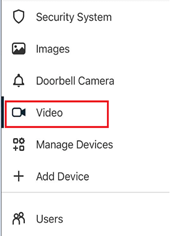
What you'll need: The Brinks Home™ app (on your phone or a computer), signed in to your account. Most steps below live under Video in the app.
Not sure where to start?
Pick what’s happening and jump to the fix.
Wi-Fi Disconnected
If your camera drops offline — often after changing your router's password or swapping hardware — reconnect using AP or WPS mode. (AP Mode uses the camera's built-in hotspot; WPS pairs it to your router with a button.)
Locate the AP/WPS button on your camera (consult your model's label).
For AP Mode: press and hold the AP button until the LED turns flashing white, then join the camera's “Camera_XXXX” hotspot on your phone and follow the on-screen setup.
For WPS: press and hold the WPS button until the LED blinks blue, then press your router's WPS button within 2 minutes — LED green means success, red means try again.
Confirm the camera is back online in the Brinks Home™ Mobile App under Video → Live.
Or open the full guide for your camera model. See camera-model guides.
Recording Rules
Good to know: When you hit your monthly upload limit, recording rules pause automatically — and they must be turned back on manually once the limit resets or is increased. Recording will not resume on its own.
Wait for the next month to begin (your clip limit resets) or contact support to increase your clip limit. Once the month resets or the clip limit is increased, recording rules must be manually turned back on for recording to resume.
If your camera is recording too many clips and using up the limit quickly, adjust the sensitivity settings of your recording rules:
- Open your Brinks Home™ app and tap Video.
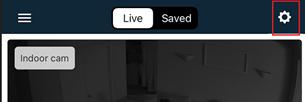
- Tap the gear icon in the top right corner of the screen, then tap Recording Rules.
- Next to each motion rule, tap the pencil icon and adjust the rule settings. Once adjusted and saved, test the new sensitivity by walking in front of the camera to see if it takes a clip.
- If you have issues adjusting sensitivity, contact support for further assistance.

Clip Filters
If clips don't show up when you search, they may be filtered — Clip Filters hide certain clip types (such as Other) when you browse saved video. To view all of them:
Log in to the Brinks Home™ Mobile App and tap Video → Saved → Filter.
Under Show, pick a date range.
Under Object Detection, check Other.
Tap Apply to refresh your clip list.

Requesting Clips
To test recording right now using Live View (the real-time camera feed you can record from):
Open Live View in the Mobile or Desktop App.
Tap the Camera icon to trigger a clip, then check your Saved Clips.
If you receive a clip, revisit your rule setup in the next section.
Video Motion Detection Rules
To create or adjust Video Motion Detection (VMD) rules — rules that record when motion is detected:
Log in to the Mobile App or Desktop App.
Navigate to Video → Recording Rules (tap the gear icon in the app).
Select Add New Rule → Video Motion Detection (VMD).
Name the rule and set time frames, delays, and which devices trigger it.
Under “At Home” options, choose to pause recording when Disarmed, Armed Stay, or geo-devices are inside the fence.
Add recipients under Video Clip Recipients → Add.
Review settings and tap Save.

Video Analytics Rules
To set up Video Analytics rules — advanced rules like Tripwire or Ground Zone that record based on virtual boundaries:
Open the Mobile App and go to Video → Recording Rules.
Remove any overlapping VMD rules to avoid conflicts.
Tap Add New Rule → Video Analytics.
Choose Tripwire or Ground Zone, then draw your analytics zone.
Set schedule, delays, and recipients, then tap Save.


For more on creating recording rules, see How to Set Up a Video Analytics Rule.
If the Camera Does Not Record a Clip
Power-cycle the camera: unplug its power source and plug it back in.
Ask your Internet Service Provider to verify these outbound ports are open:
- 80 (TCP)
- 21 (TCP)
- 123 (UDP)
- 443 (TCP)
Retry a live-view clip trigger to confirm.
Delete & Recreate the Recording Rule
Log in to the Mobile App and go to Video → Recording Rules.
Tap the trash icon next to the rule and confirm deletion.
Tap Add New Rule and rebuild it, then test by walking in front of the camera.
Further Assistance
Still Need Help?
If you still have trouble, contact Support by texting or calling 469-513-8685. Our team is available daily from 8 am to 8 pm CT.
Quick glossary of camera terms
- AP Mode (Access Point Mode)
- The camera's built-in hotspot used to set up Wi-Fi when you can't connect normally.
- WPS (Wi-Fi Protected Setup)
- A push-button method to pair your camera to the router without entering a password.
- Recording Rules
- Settings that tell your system when and how to record video clips.
- Clip Filters
- Options that hide certain clip types (for example, Other) when you browse saved video.
- VMD (Video Motion Detection)
- A rule type that records when motion is detected.
- Video Analytics
- Advanced rules (like Tripwire or Ground Zone) that record based on virtual boundaries.
- Live View
- The real-time camera feed you can manually snapshot or record.