How to Make a One-Time Payment
Make a one-time payment to pay your balance without signing up for recurring payments. Pick the way that works best for you.
Ways to Pay
- Reply to our textIf you have a saved payment method and aren't on AutoPay
- In the Brinks Home AppPay with a saved or new payment method
- Online as a guestOn brinkshome.com, no login needed
- Chat or text to payOur digital payment system
- Call usA convenience fee applies
- Mail a paymentSend a check to our payment address
Tip: Already logged in to the Customer Portal? Go straight to the payment page.
Reply to Our Text
You'll get a text 3 days before your bill if you have a payment method saved to your account, aren't enrolled in AutoPay, and don't have a payment scheduled for your next bill.
The text shows the amount due, your customer number and the due date. Reply Pay Now to pay right away, or Pay Due Date to schedule your payment for your due date.

The text you'll get If you reply Pay Now, you'll get a list of your saved payment methods. Reply with the letter of the one you want, and the payment is processed.

Pay Now If you reply Pay Due Date, you pick a saved payment method the same way, and the payment is scheduled for your due date.

Pay Due Date Want to use a different card or account? Choose the option to add a new payment method. The text walks you through adding it, and it's saved for next time.

Adding a new payment method When your payment is processed, you'll get a text with a confirmation number.

Your confirmation


Good to know: Allow up to 24 hours for confirmation and for the payment to show on your account.
No saved payment method? You won't get the text. Pay in the Brinks Home App or online instead (below).
In the Brinks Home App
Log in to the Brinks Home App.
Tap the 3 lines in the top left corner to open the menu, then tap My Account.
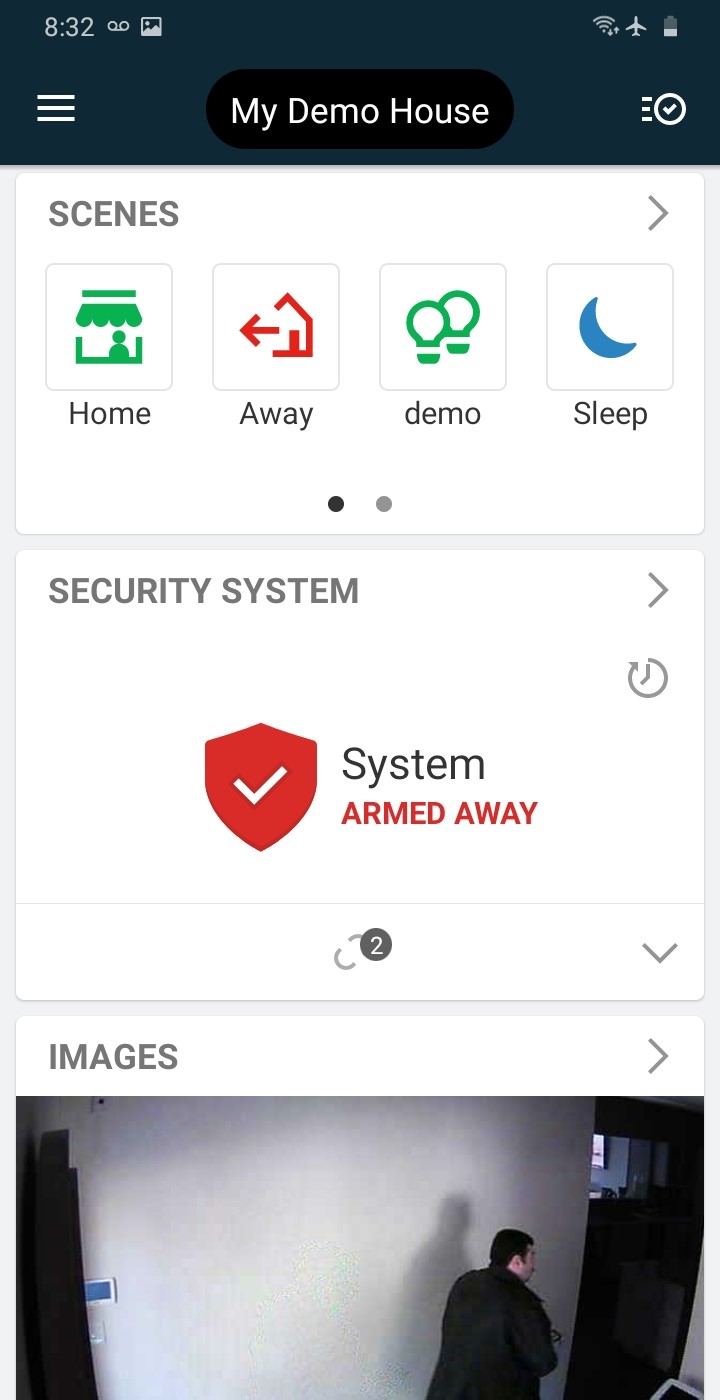
Tap the 3 lines 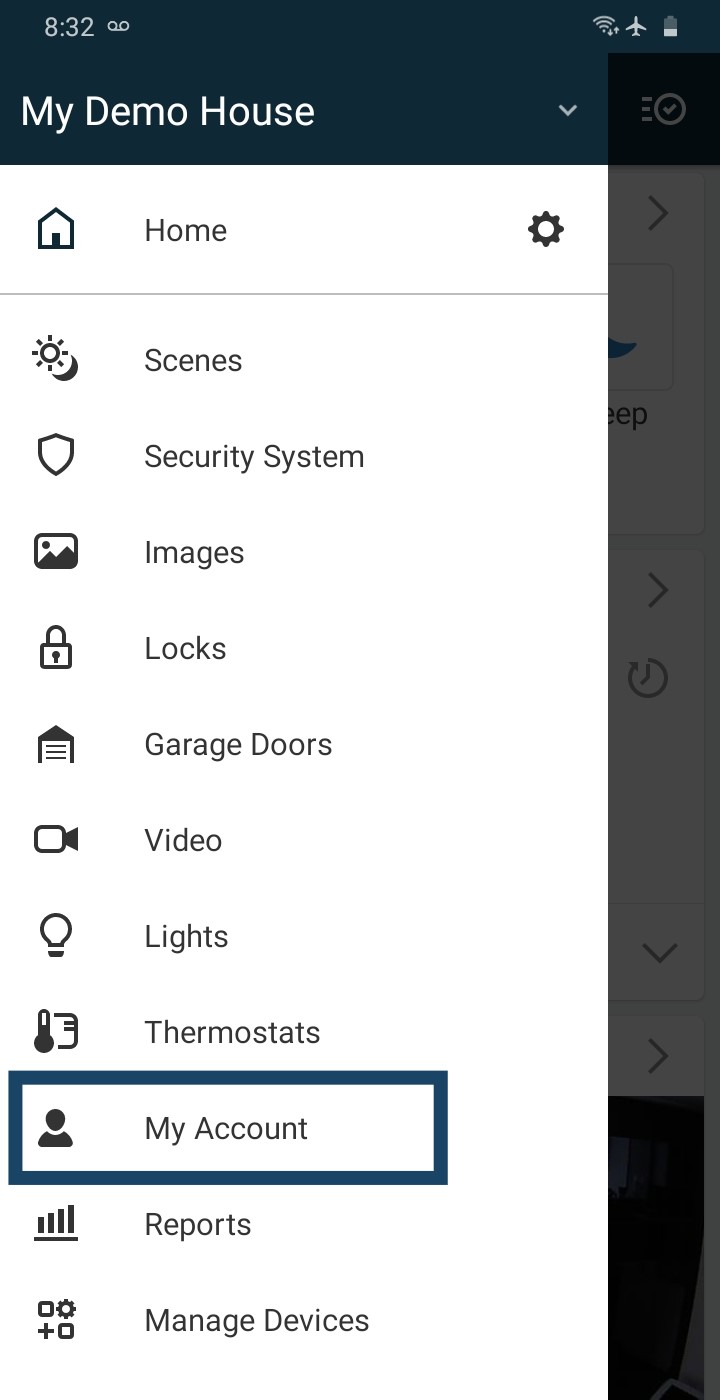
Tap My Account Tap Make a Payment, in the middle of the screen or in Quick Links.
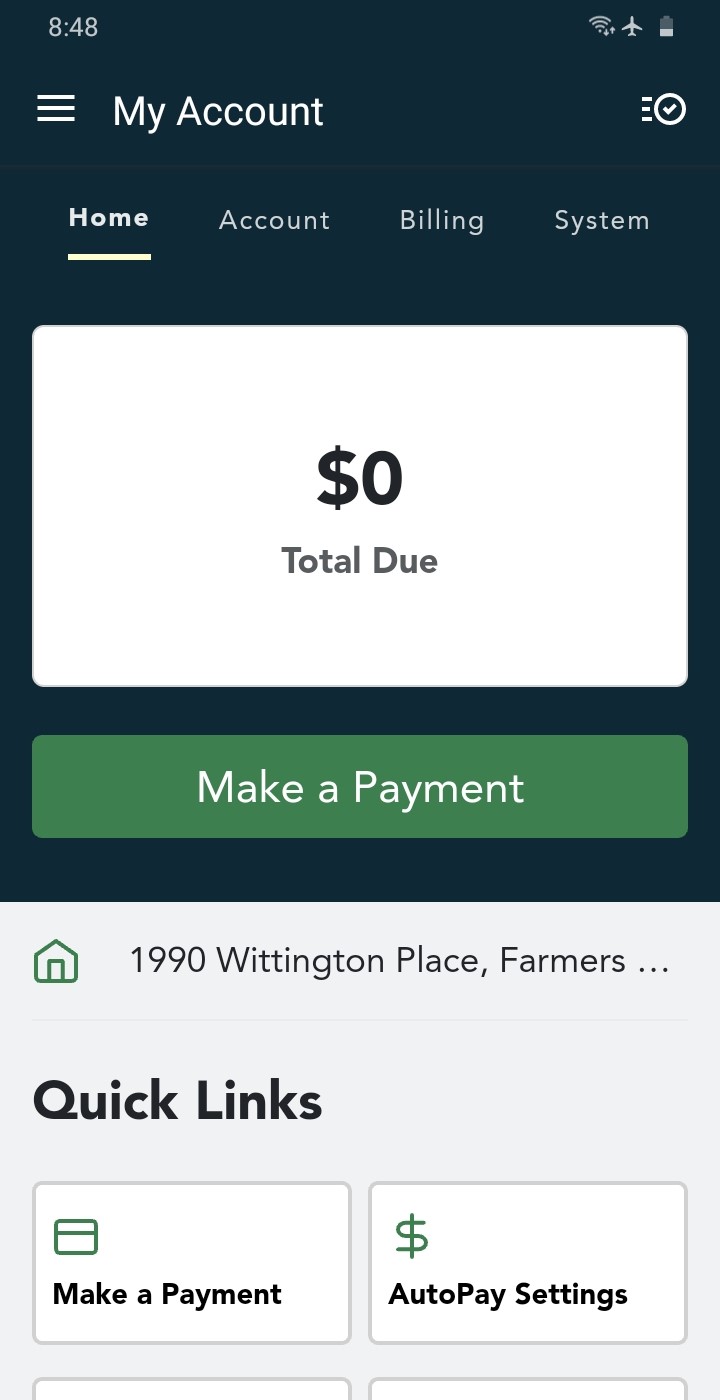
Make a Payment 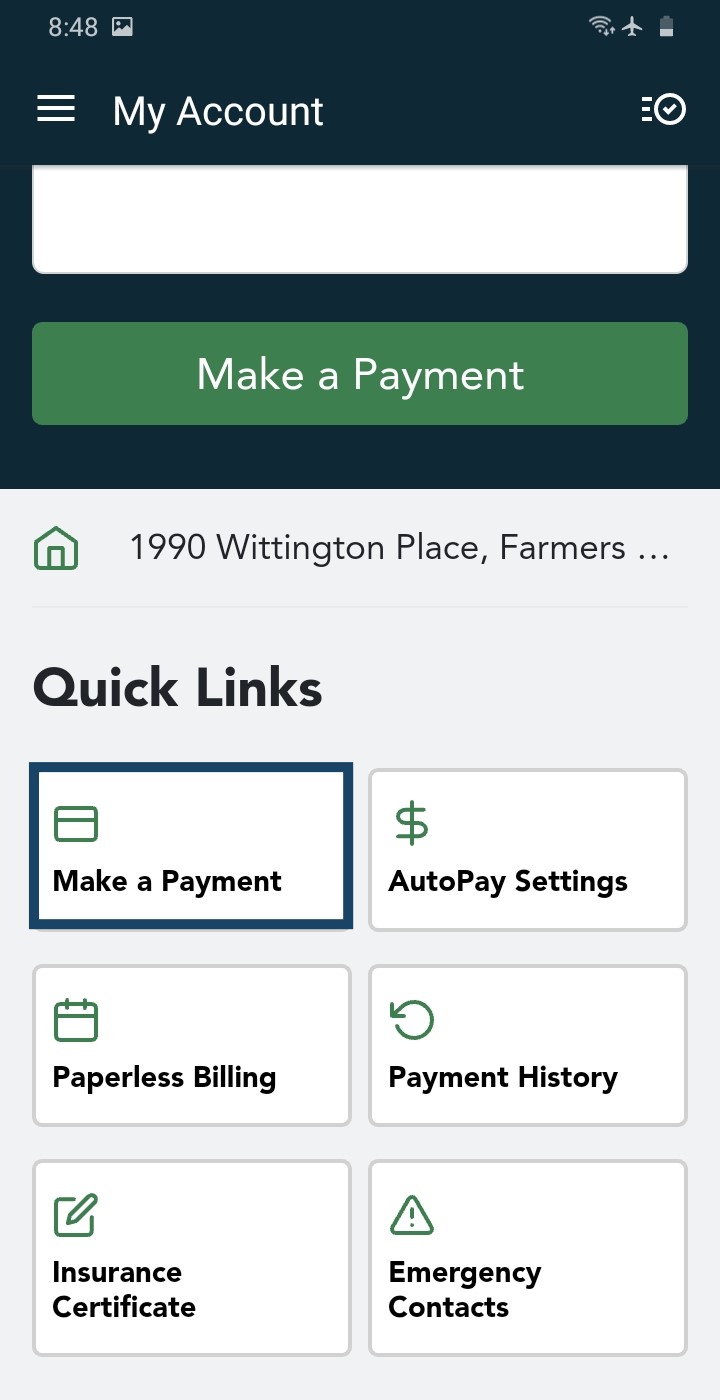
Or use Quick Links Choose how to pay: tap the circle next to a saved payment method, then tap Next. To use a new one, tap the + next to Payment Method (steps below).
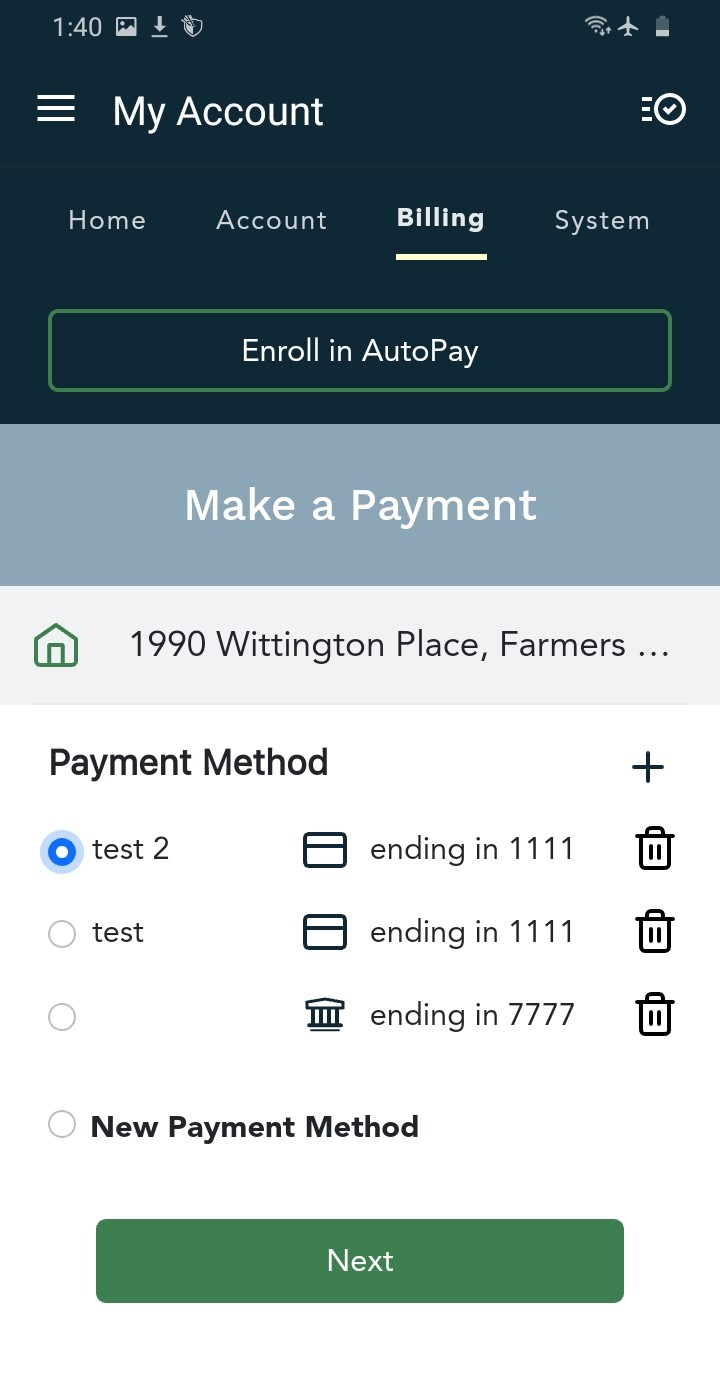
Pick a saved method, or tap + Enter your payment date and payment amount, then tap Review Payment.
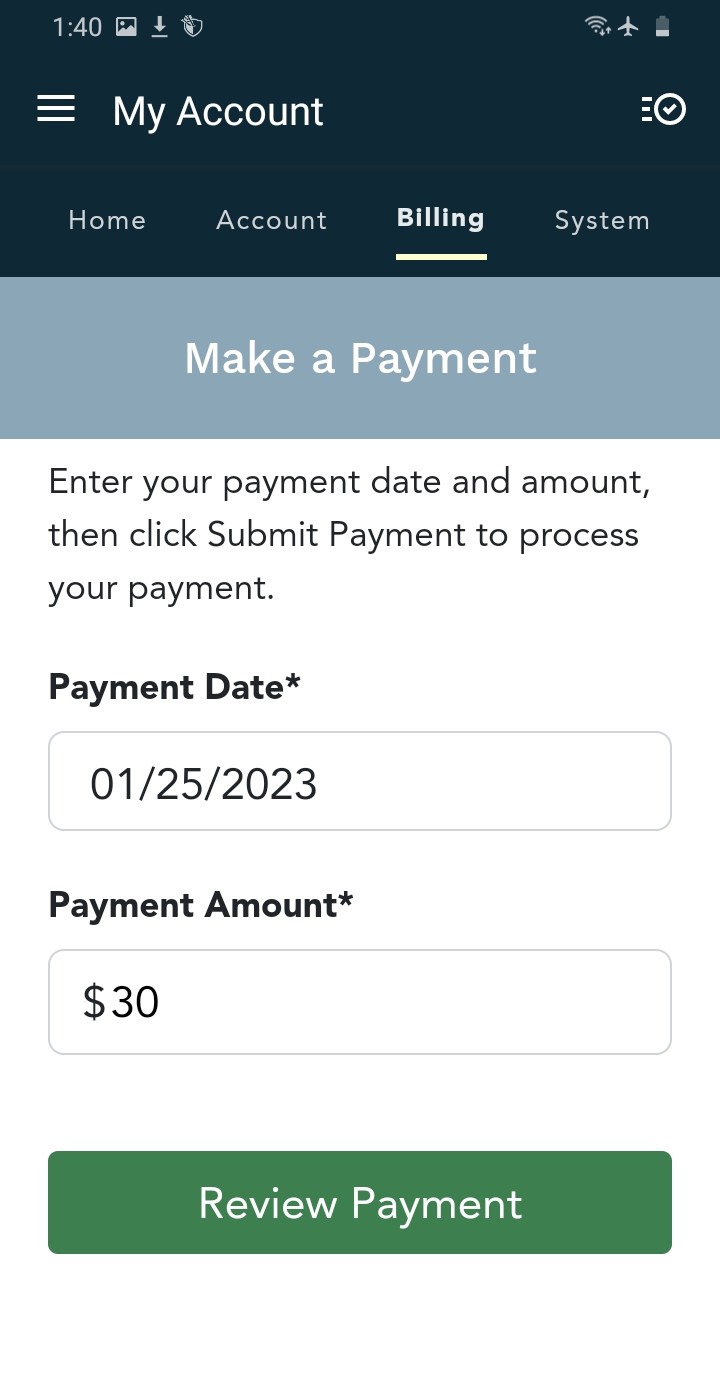
Date and amount Check the details, check the box to authorize the payment, then tap Confirm.
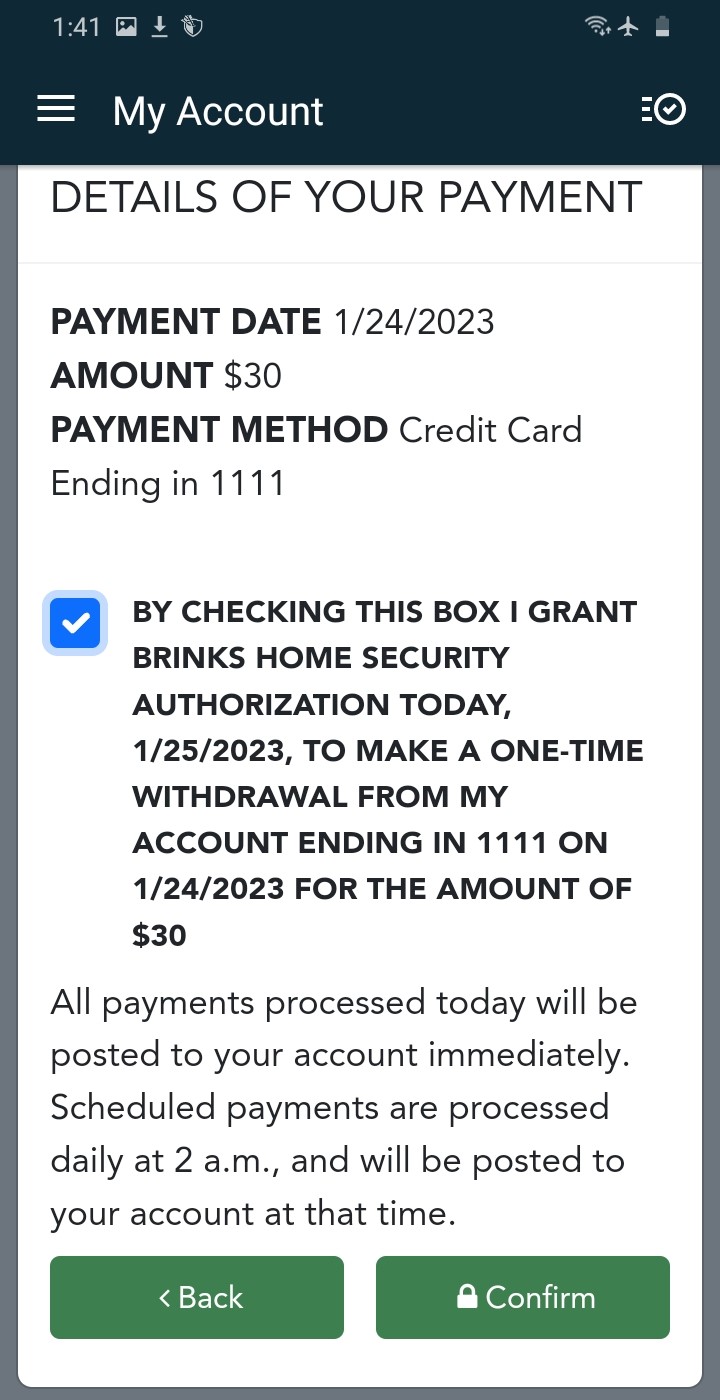
Review and confirm
Using a New Payment Method
Tap the + next to Payment Method and enter a nickname for the account.
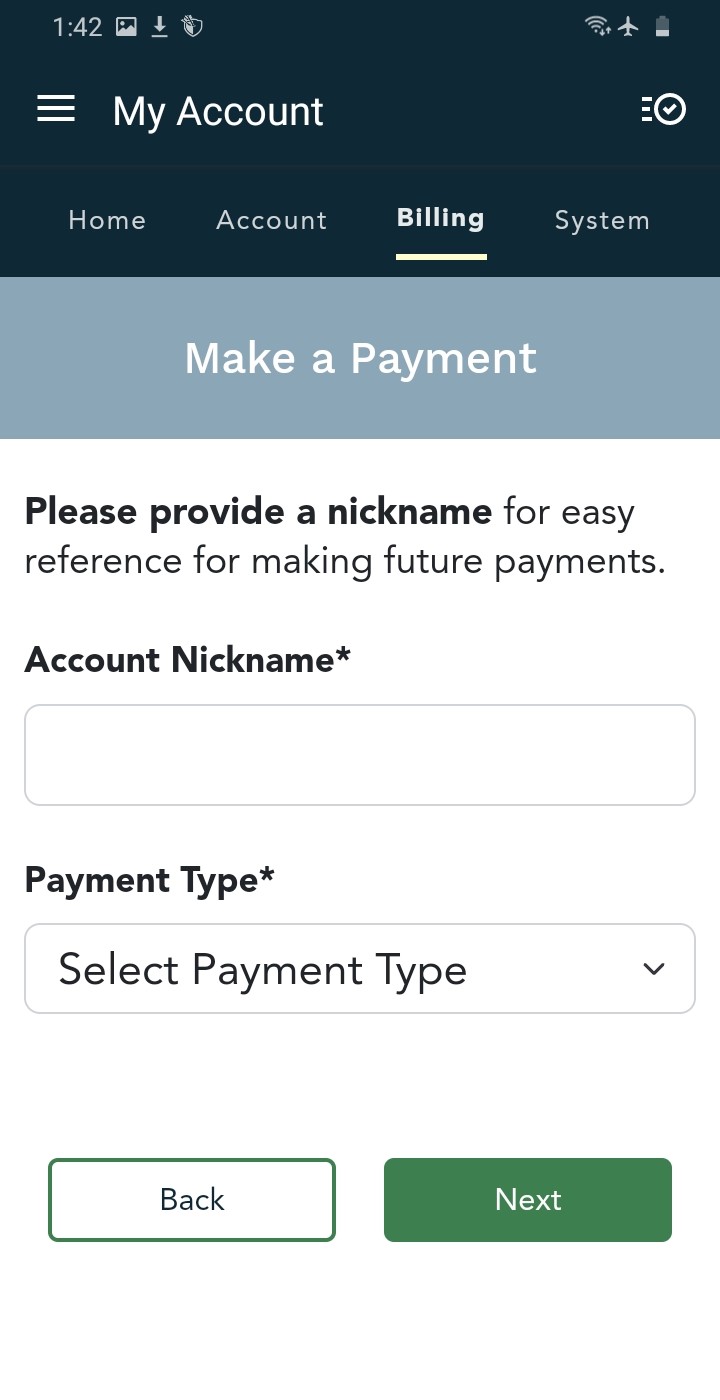
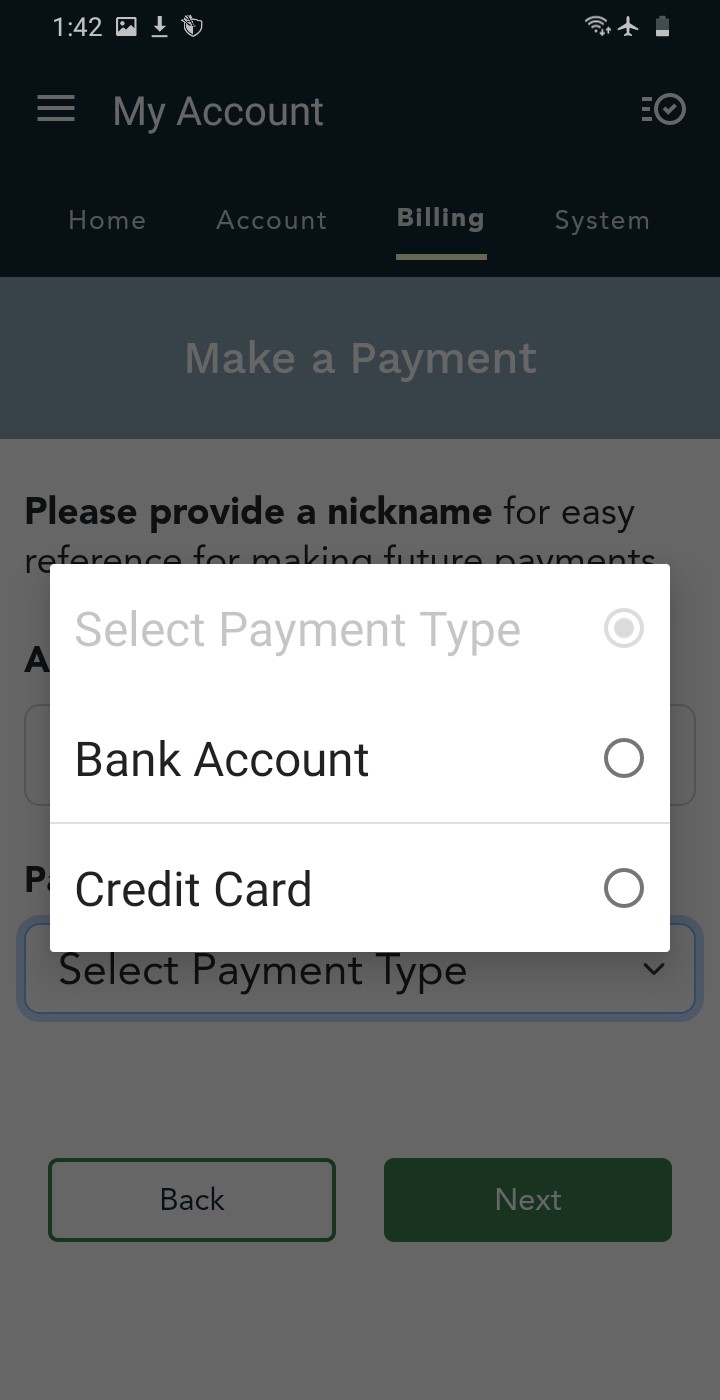
Give it a nickname Choose Bank Account or Credit Card, tap Next, and enter your billing information.
Bank account or card 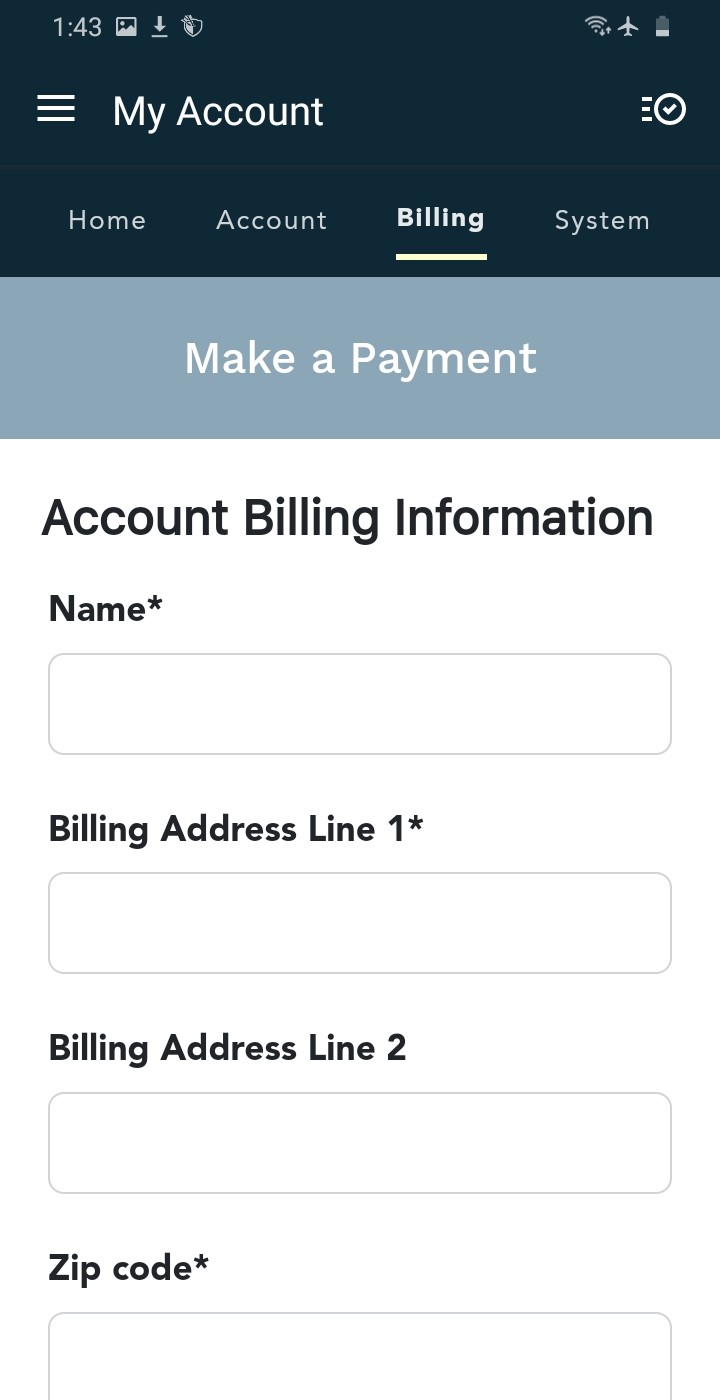
Billing information
Good to know: Payments made today are posted to your account right away. Scheduled payments are processed daily at 2 a.m. and posted then.
Online as a Guest
Go to brinkshome.com, open the Customer Support menu, then select Make Payment.

Customer Support, then Make Payment Select Pay as a Guest.

Pay as a Guest Enter your phone number or email address to get a verification code.

Phone number or email Enter the code we send you. It expires in 10 minutes. After that, request a new code.

Enter the code Your unpaid statement and total amount due appear. Pay with a credit or debit card or a bank transfer (ACH). You can submit once all required fields are filled in.

Your statement and payment form Your payment is processed. When it's successful, you can download a receipt at the bottom of the page.

Processing, then paid (tap to enlarge) You'll see a thank-you message, with a link to register for the Customer Portal if you haven't yet.

Thank you


If the payment fails: you'll see an error message and can try again.


Owe $0.00? If your balance is $0.00, you can't make a one-time payment. You'll see a note about enrolling in AutoPay in the Customer Portal instead.
Chat or Text to Pay
Use the chat bubble at the bottom of this page, or from your mobile phone text 469.482.9315, and follow the prompts to pay your balance.
Call Us
Call 469.391.4024 and a Support Representative can take your payment over the phone. A convenience fee applies.
Mail a Payment
Mail your payment to:
Brinks Home Security Funding LPDepartment CH 8628
Palatine, IL 60055-8628
Skip the paper fee: Avoid the $5.99 paper statement fee. Sign up for paperless billing. You can set up automatic monthly payments with your bank account or a credit card and still see your statement any time in the Brinks Home App or Customer Portal.
Still Need Help?
Payment didn't go through, or not sure which way to pay? Our support team can help.
Contact Brinks Home™ Support